Invoicing & Payments
Paxus invoicing lets you create professional line-item invoices for contacts or companies, apply discounts and tax, record payments, and download documents as PDF or Office formats.
Creating an Invoice
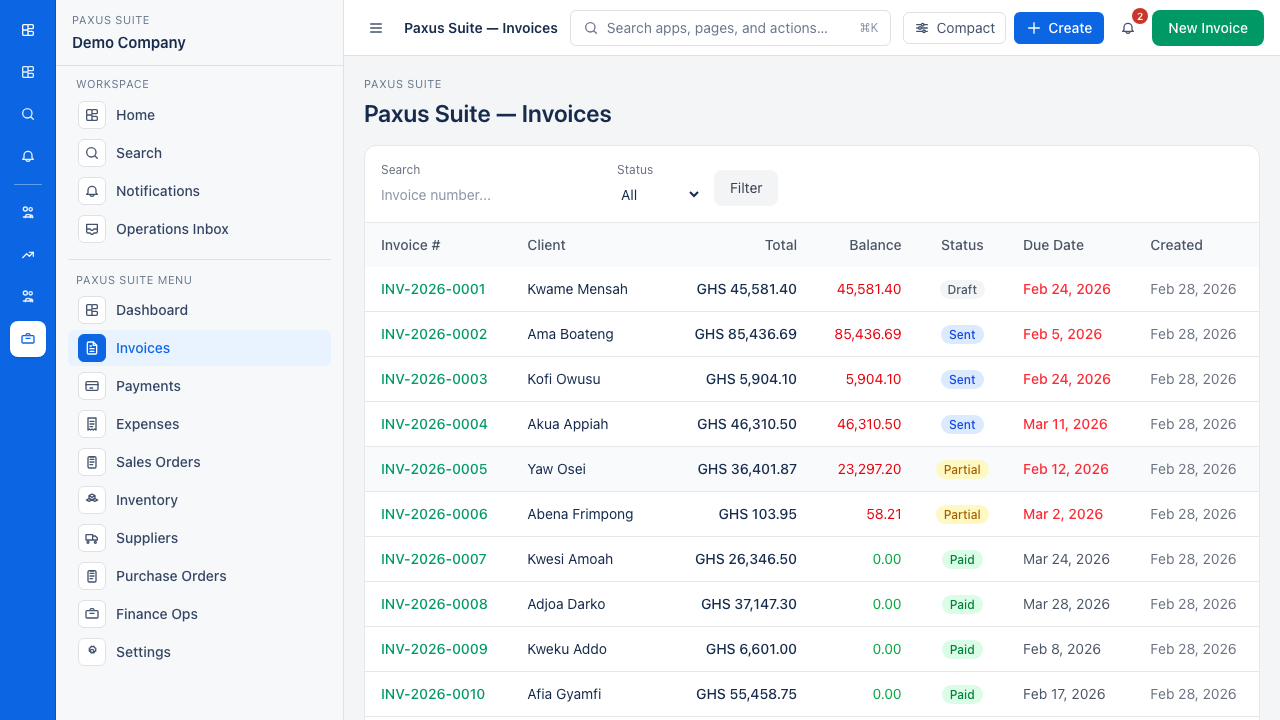
Open the Invoices list
Navigate to Paxus Suite → Invoices to see all existing invoices.
Fill in the new invoice form
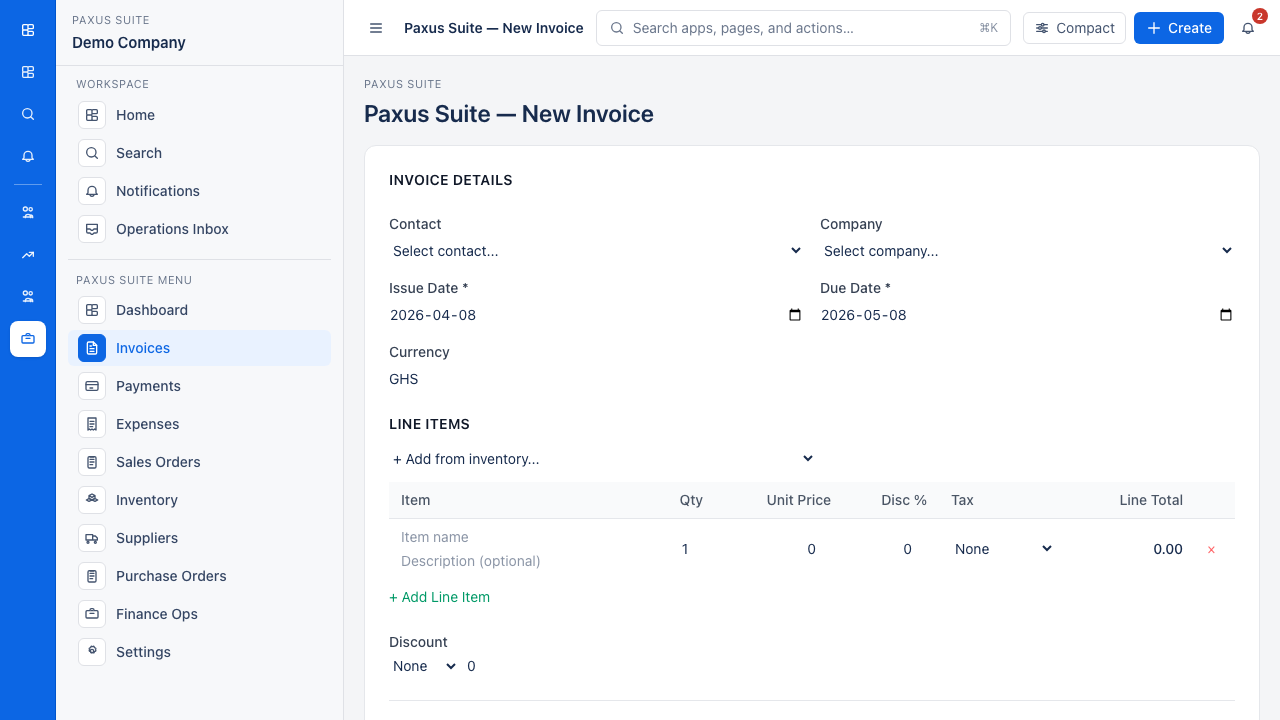
Click New Invoice to open the invoice creation form. Select a contact or company, set dates, add line items, and save.
- Go to Paxus Suite → Invoices.
- Click New Invoice.
- Select a Contact or Company (or both) as the bill-to party.
- Set the Issue Date and Due Date.
- Optionally set a Currency (defaults to GHS).
- Add line items — each item has:
- Name (required)
- Description
- Quantity
- Unit Price
- Per-item discount percentage
- Tax rate (selected from your active tax rates)
- Optional link to an inventory item (auto-fills name and price)
- Optionally apply an order-level discount — fixed amount or percentage.
- Add Notes or Terms for the footer.
- Click Save.
Totals (subtotal, discounts, tax, and amount due) are calculated automatically and stored with the invoice.
Link line items to Paxus inventory items to keep your product names consistent and to pull in the standard sale price automatically.
Invoice Statuses
| Status | Meaning |
|---|---|
| Draft | Created but not yet sent |
| Sent | Marked as sent; a public share link is generated |
| Paid | Balance due reaches zero |
| Overdue | Past the due date and not fully paid |
| Cancelled | Invoice voided; not included in receivables |
Sending an Invoice
Open the invoice and click Mark as Sent. The status changes to sent and a public URL is generated that you can share with the client directly. The client does not need a Faciotech account to view the invoice via the public link.
Recording a Payment
- Open the invoice.
- Click Record Payment.
- Enter the Amount, Payment Date, and Payment Method.
- Optionally add a Reference number (e.g., a bank transaction ID) and notes.
- Click Save.
The invoice balance updates immediately. You can record multiple partial payments against a single invoice. To remove an incorrect payment entry, use the Delete action on the payment line.
Downloading as PDF or Office Format
From the invoice detail page, click Download and choose a format:
- PDF — always available; generated via the built-in PDF renderer
- DOCX / ODT — available when the Office Suite module is active and an invoice template has been published in Office Suite
If Office Suite is enabled but no published invoice template exists, the download falls back to PDF automatically.
Editing and Deleting an Invoice
Open the invoice and click Edit to change any field, including line items. Note that the currency field is set at creation time and cannot be changed on edit. All line items are replaced on save — recalculation runs automatically. To delete, use the Delete action from the edit form.
See Paxus Overview for information on configuring tax rates and settings.